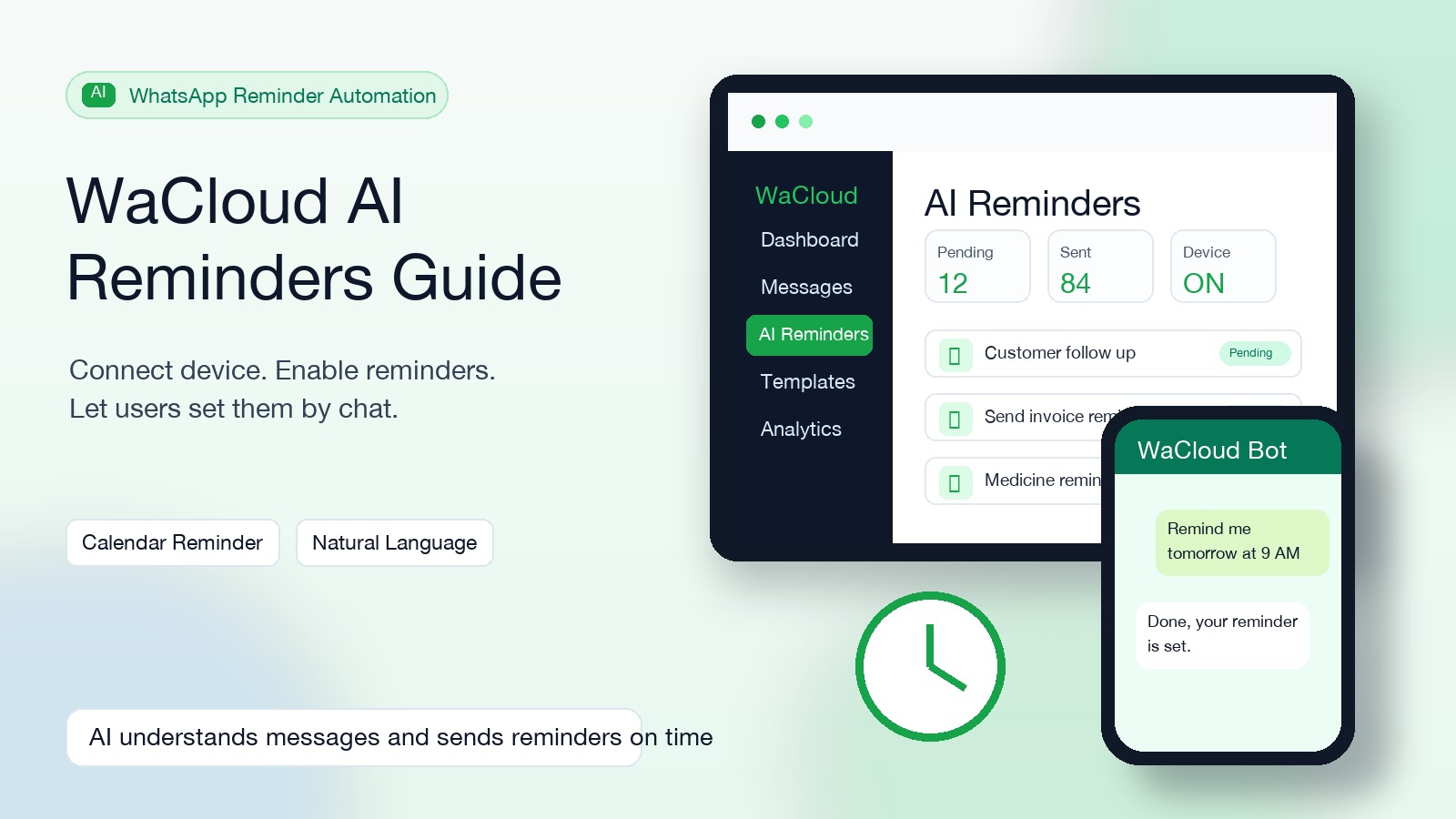
Sidebar থেকে AI Reminders খুঁজুন
Login করার পরে বাম sidebar-এ Messaging group খুলুন। এর ভেতরে AI Reminders menu item থাকবে।
- Dashboard থেকে বাম sidebar দেখুন।
- Messaging এ click করলে submenu expand হবে।
- Submenu থেকে AI Reminders click করুন।
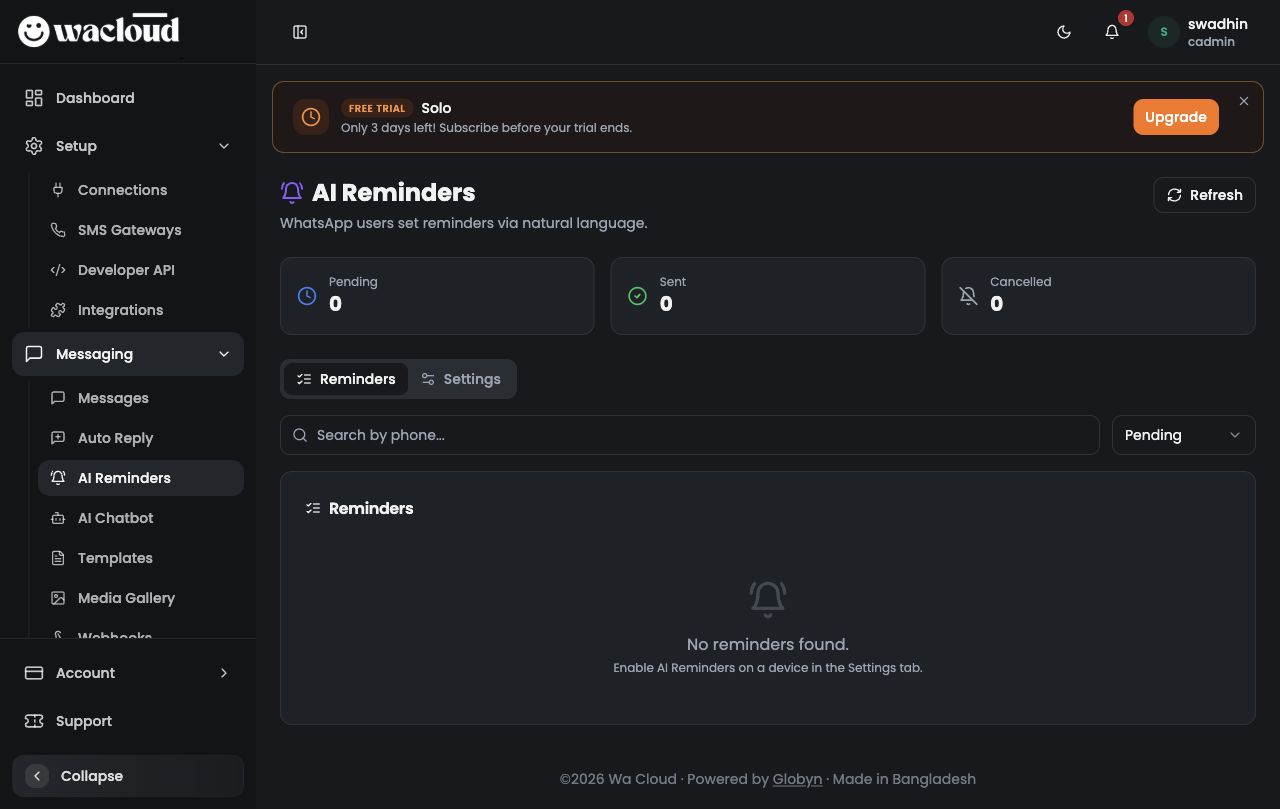
Main page ও stats overview বুঝুন
AI Reminders page-এর উপরে Pending, Sent এবং Cancelled quick stats দেখা যায়। এগুলো দিয়ে reminder queue-এর অবস্থা বোঝা যায়।
- Pending মানে এখনো পাঠানোর অপেক্ষায় থাকা reminders।
- Sent মানে নির্ধারিত সময়ে পাঠানো reminders।
- Cancelled মানে cancel হওয়া reminders।
- Refresh button দিয়ে latest data reload করা যায়।
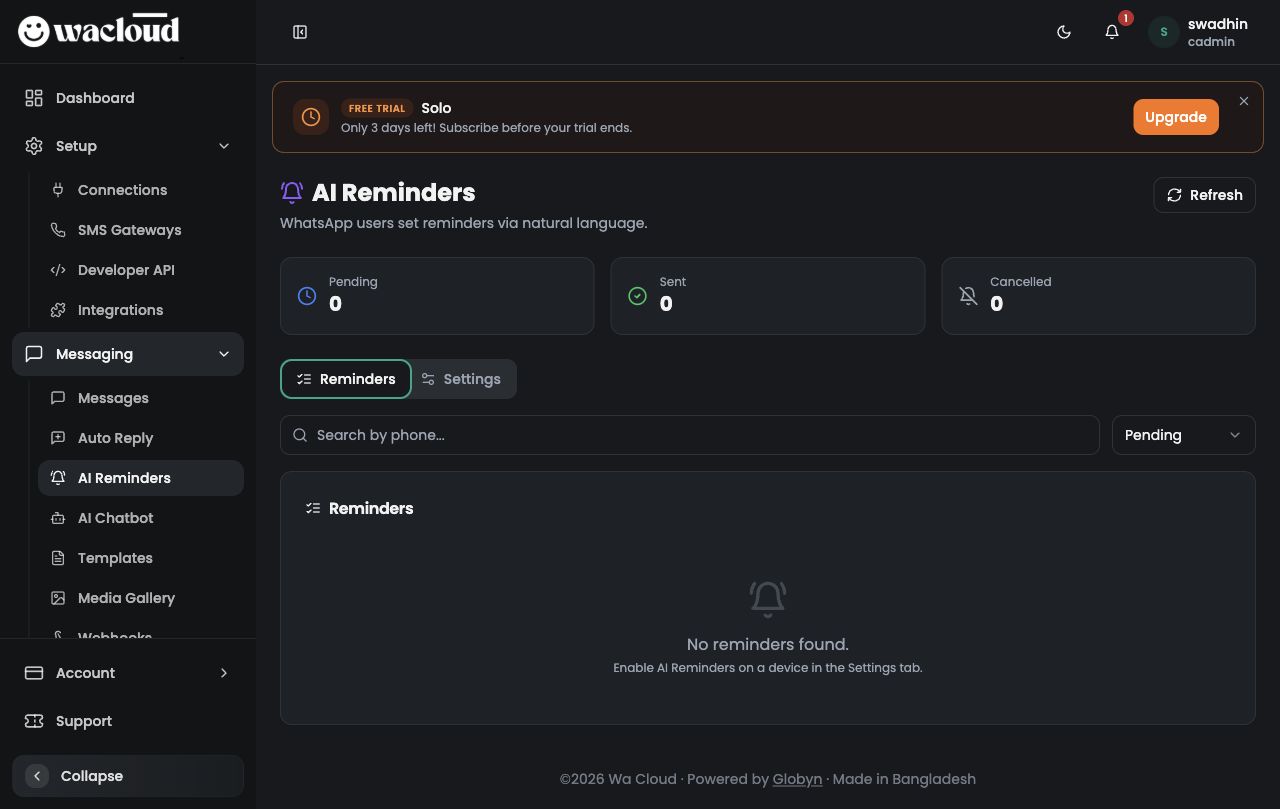
Settings tab খুলুন
Device-wise enable/disable করার জন্য AI Reminders page-এর Settings tab খুলতে হবে।
- AI Reminders page-এ যান।
- Stats card-এর নিচে Settings tab click করুন।
- Device না থাকলে page বলবে: No devices found. Add a device in Connections first.
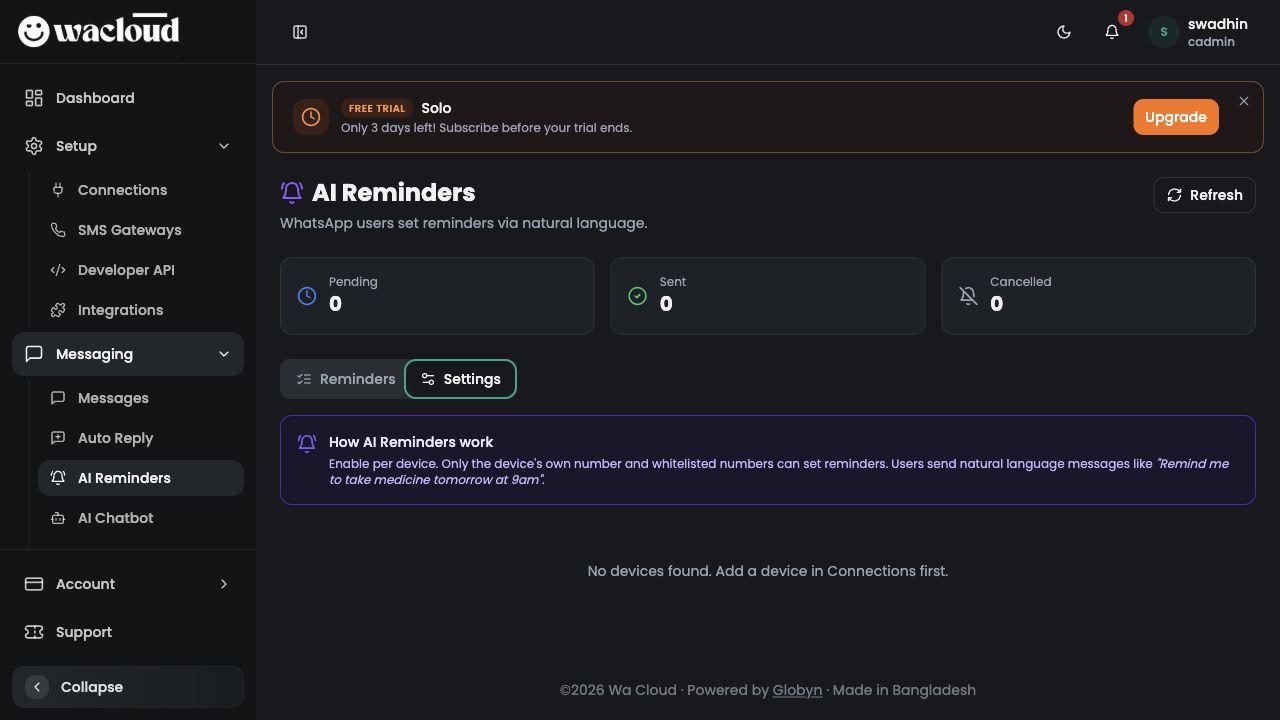
Connection/device আগে যোগ করুন
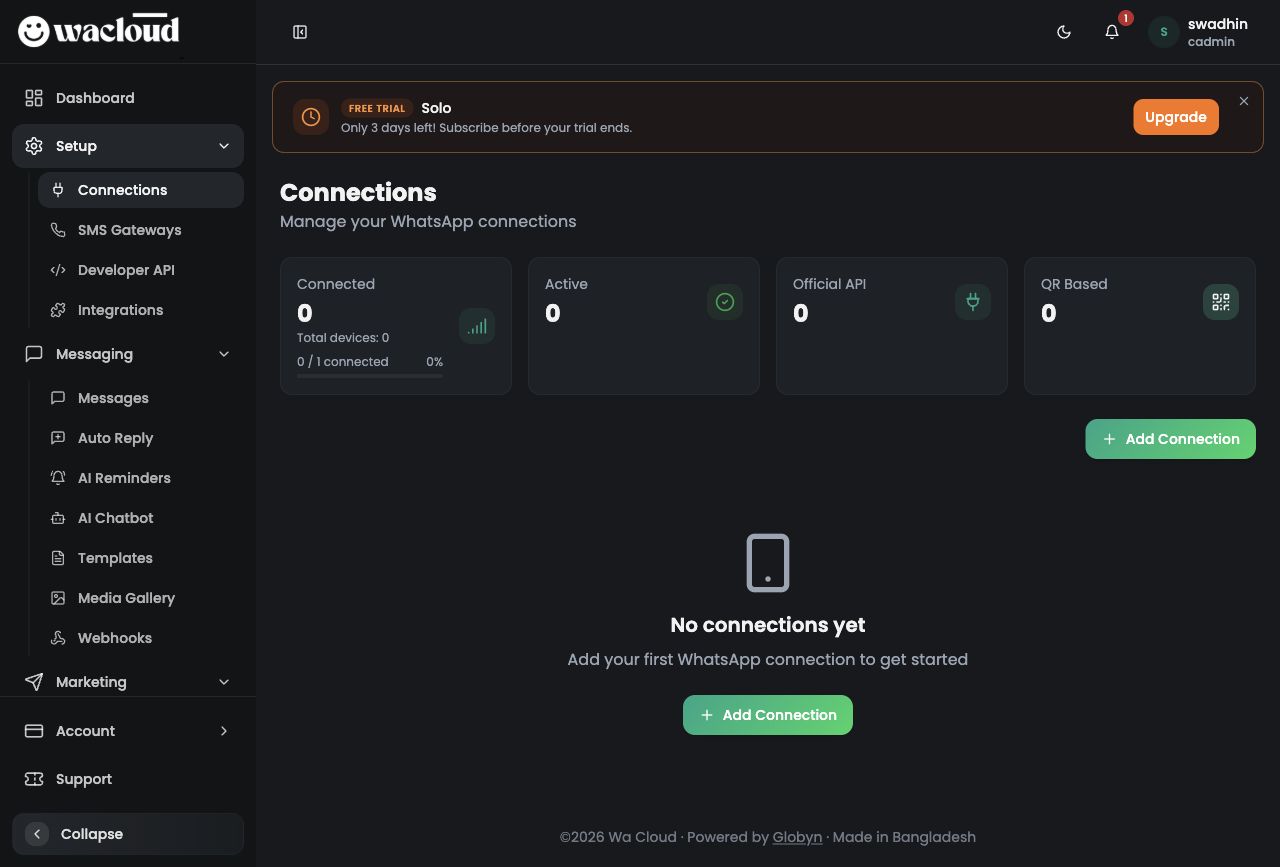
AI Reminders চালু করার আগে Connections page থেকে WhatsApp device add করতে হবে।
- Sidebar থেকে Setup group খুলে Connections click করুন।
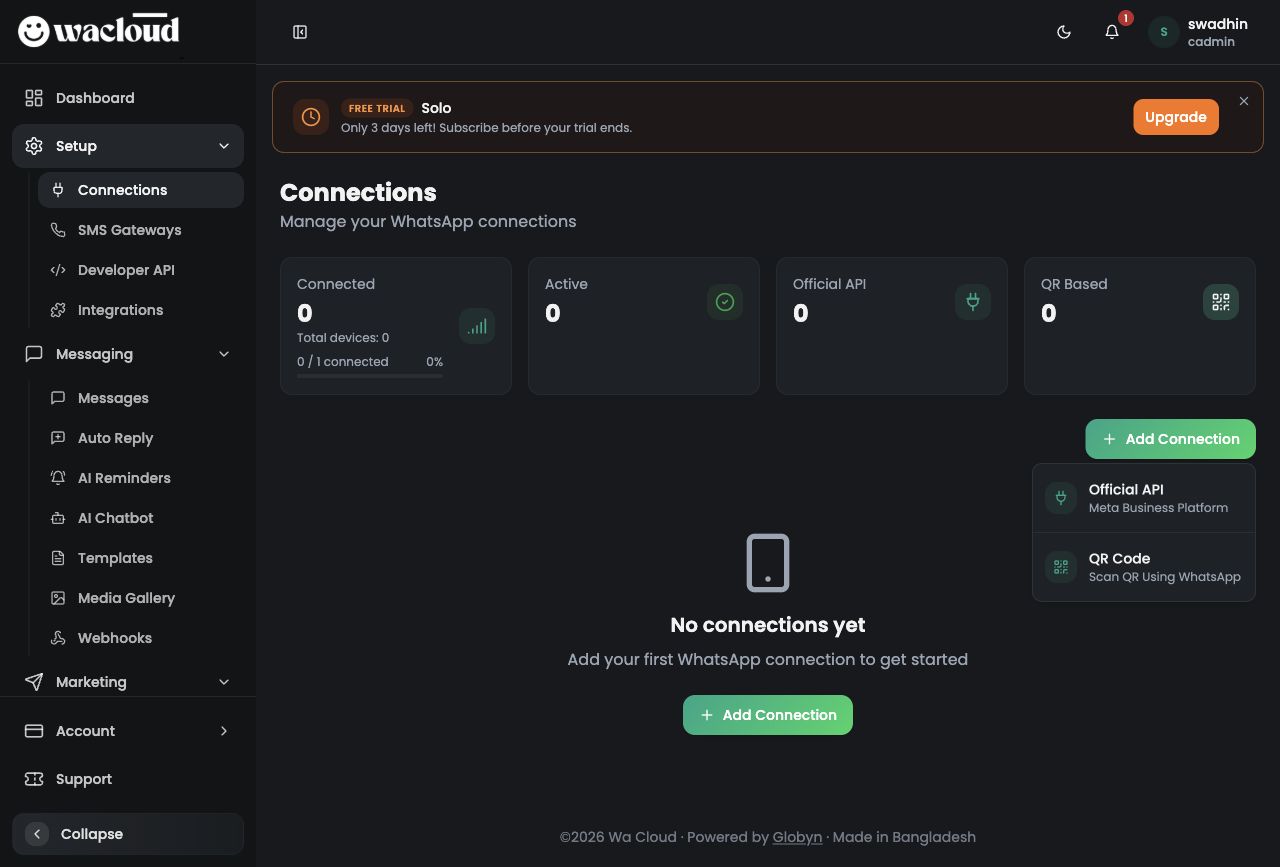
- Add Connection button click করুন।
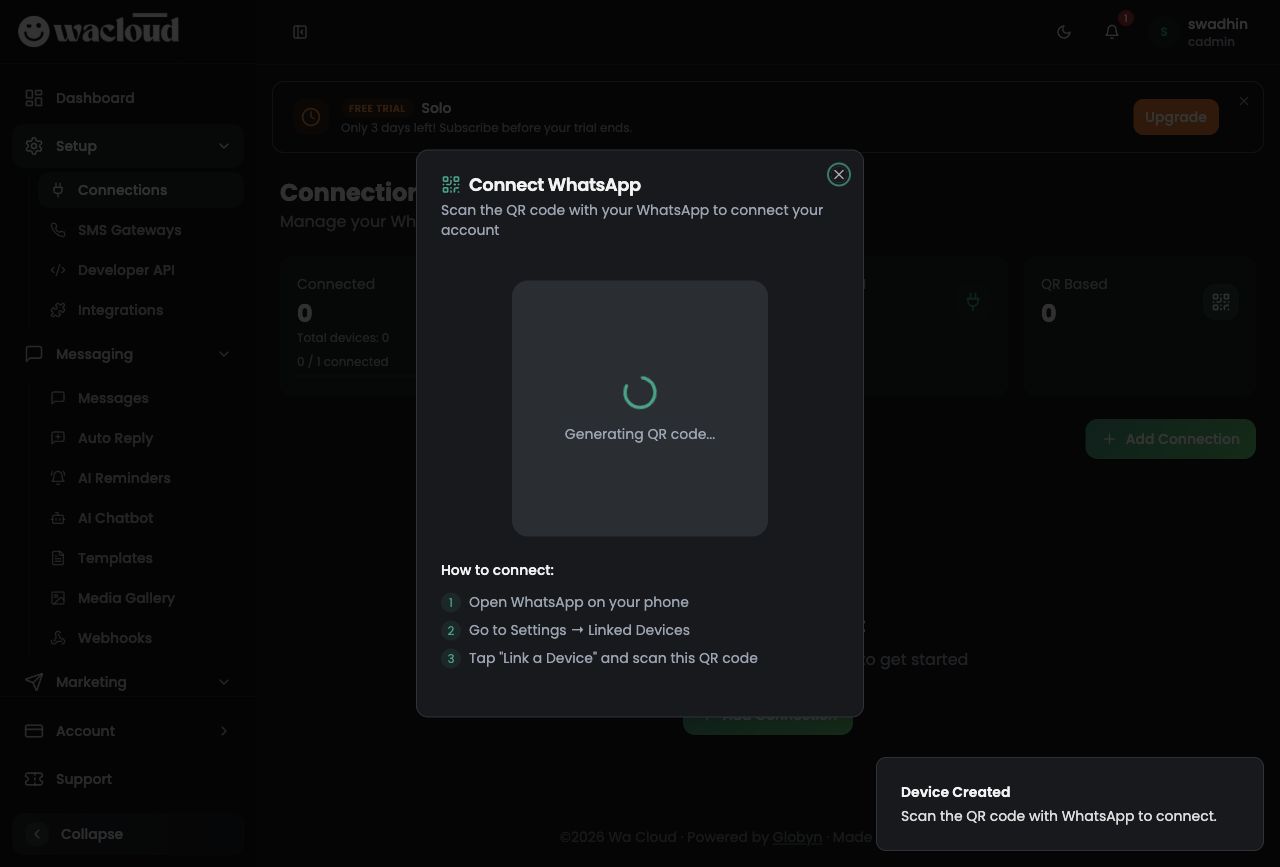
- QR Code select করুন। Official API ব্যবহার করলে Meta Business Platform flow অনুসরণ করুন।
- Phone-এর WhatsApp খুলে Settings → Linked Devices → Link a Device থেকে QR scan করুন।
Device-এ AI Reminders enable করুন
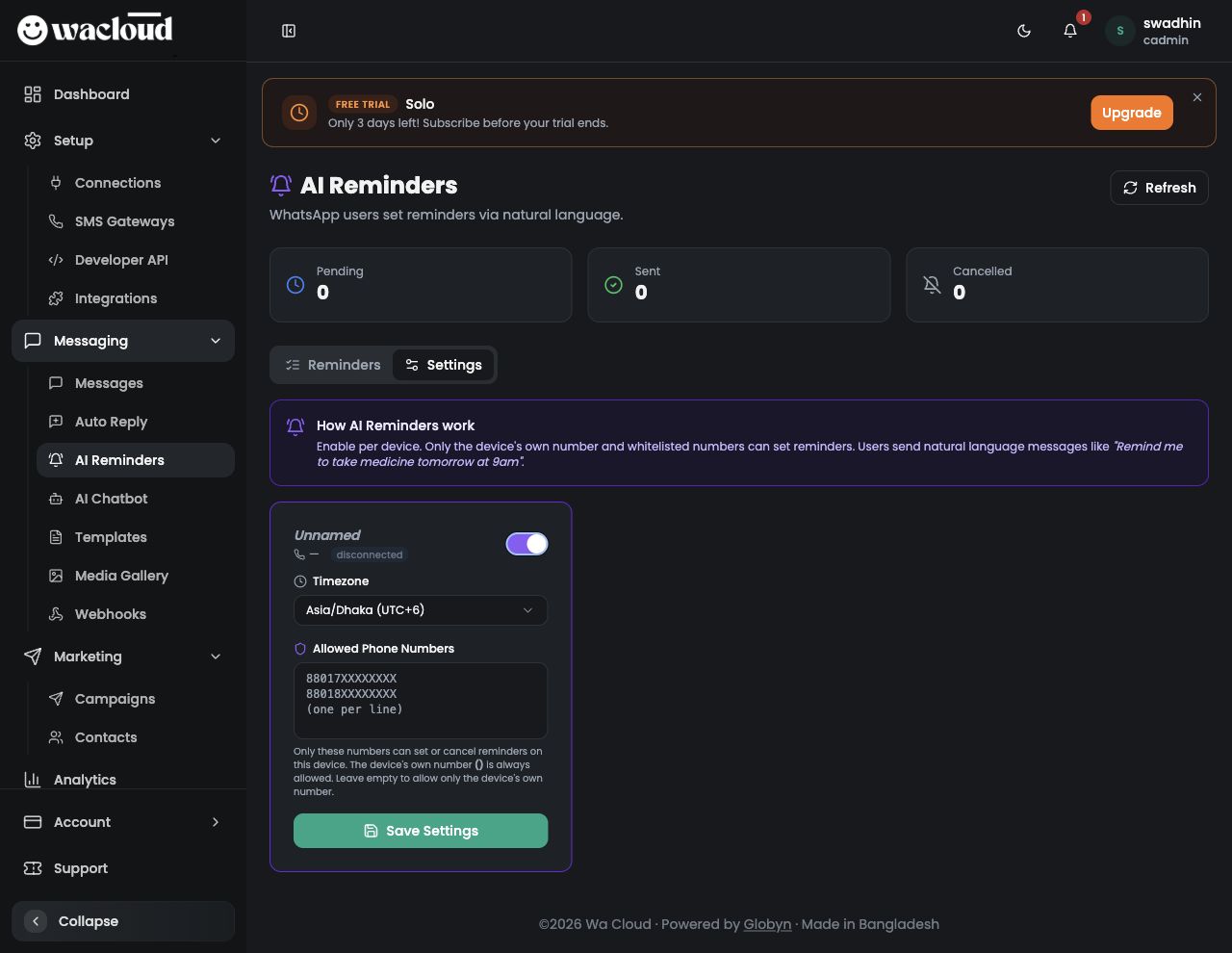
Device add করার পরে AI Reminders → Settings tab-এ device card দেখা যাবে। Switch on করলে timezone, allowed phone numbers এবং Save Settings controls দেখা যায়।
- Messaging → AI Reminders খুলুন।
- Settings tab click করুন।
- Device card-এর switch on করুন।
- Timezone ঠিক করুন, যেমন Asia/Dhaka (UTC+6)।
- Allowed Phone Numbers এ অনুমোদিত number লিখুন। এক লাইনে একটি number দিন।
- Save Settings click করুন। Save fail হলে device connected আছে কিনা verify করুন।
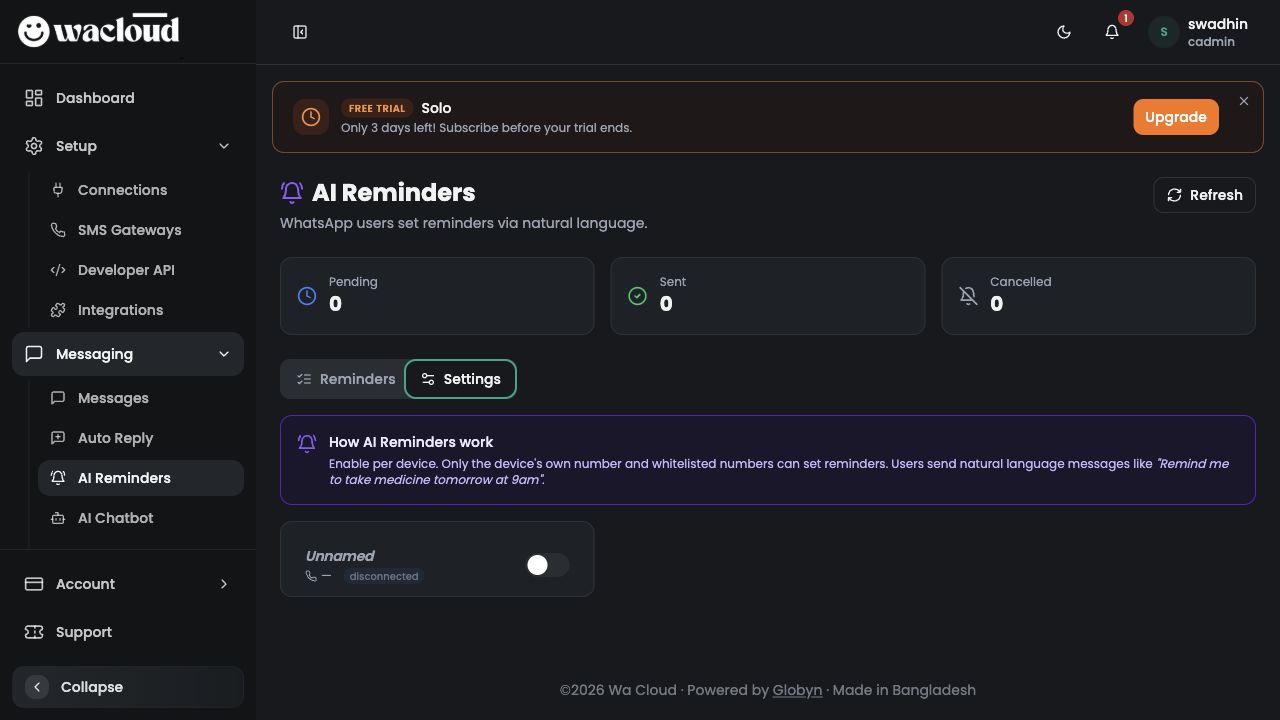
Connected device হলে expected state
connected
WhatsApp natural language দিয়ে reminder সেট করুন
AI Reminders enable হলে allowed user WhatsApp-এ সাধারণ ভাষায় reminder লিখতে পারে। WaCloud message বুঝে reminder time এবং task তৈরি করবে।
- Allowed number থেকে connected device-এর WhatsApp-এ message পাঠান।
- উদাহরণ:
আগামীকাল সকাল ৯টায় medicine খেতে remind করো - আরও উদাহরণ:
Friday 5pm customer follow up remind me - Cancel করতে চাইলে লিখতে পারেন:
আগামীকালের medicine reminder cancel করো
Reminders দেখুন ও filter করুন
Reminders tab থেকে phone number দিয়ে search করা যায় এবং status dropdown দিয়ে reminders filter করা যায়।
- Search by phone field-এ customer/user phone number লিখুন।
- Status dropdown থেকে Pending, Sent বা Cancelled filter করুন।
- List empty হলে Settings tab-এ device enabled আছে কিনা check করুন।
| Phone | Reminder | Schedule | Status |
|---|---|---|---|
| 88017XXXXXXXX | Medicine খেতে মনে করিয়ে দেওয়া | Tomorrow, 9:00 AM | Pending |
| 88018XXXXXXXX | Customer follow up | Friday, 5:00 PM | Sent |